How to View Trip History and Reconstruction
How to View Trip History and Reconstruction
The Trip Reconstruction feature provides a highly detailed, interactive replay of any recorded trip, complete with 3D visualization, telemetry data, and deep analytics on driving events or potential crashes.
How to Access Trip Reconstruction
Select a vehicle to open its details panel. You can do this by clicking a vehicle directly from the Live View map, or by clicking Vehicles from the left-side navigation panel and selecting one from your list.
Click Trips to access the vehicle's trip history.
- Use the calendar icon to search for a specific date, or scroll down the list to find the desired trip.
Click the blue zigzag icon (the "N" shaped symbol) located on the right side of the trip entry to launch the simulation.
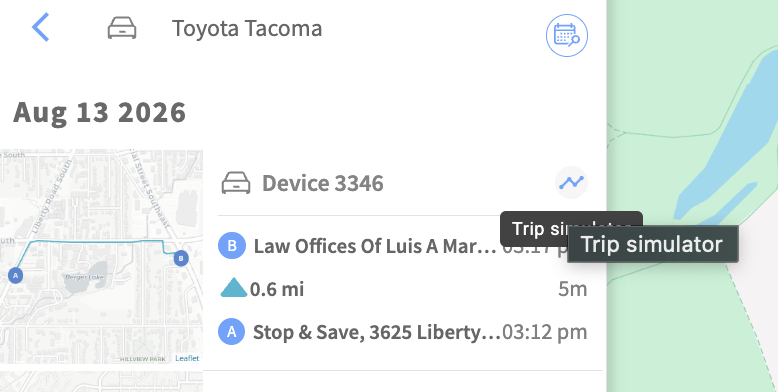 Trip Simulator & Playback Controls
Once the dashboard loads, you can click Collapse dashboard at the top right to hide the extended analytics and focus entirely on the visual trip simulation.
Display Modes: Toggle between Map Reconstruction, 3D Reconstruction, and Hybrid Mode using the buttons at the top of the screen.
3D Camera Angles: When viewing in 3D Reconstruction mode, you can customize your perspective by selecting the 3rd Person, Aerial, or Cinematic view.
Playback Speed: Use the Play, Pause, Reset, Slow down (<), and Speed up (>) buttons to control the timeline. Playback defaults to 1x speed but can be adjusted anywhere from 0.5x up to 24x speed.
Camera Tracking: The simulation defaults to Re-center, automatically following the vehicle as it moves along the route. Click Free camera to manually move and pan the screen around the map.
Trip Data & Event Analytics
When the dashboard is expanded (click Expand dashboard), the system highlights specific metrics and safety events synced to the playback timeline:
Live Metrics: View real-time Speed, Fuel, Shock (G-force), and Heading as the vehicle moves.
Trip Intelligence Dashboard: Displays high-level summaries including Peak Speed, Average Moving Speed, Journey Distance, and Peak Shock severity.
Event & Crash Breakdown: Isolates specific high-impact events (e.g., harsh braking or cornering loads), showing the exact timestamp, load direction, and G-force.
Visualized Telemetry: Use the Fused Telemetry Stream and Accelerometer charts to track the exact moments of harsh driving or sudden movement changes across the trip's duration.
Contact Support at support@fleetr.app or (1) 415-651-7575.